
Printer Test Page
If your prints look faded, streaky, or off in color, a printer test page is the quickest way to see what is wrong. Scroll down to open a sheet and check ink coverage, alignment, and color on inkjet, laser, or office printers.
Use portrait layout and actual size or 100% scale for the most accurate result.
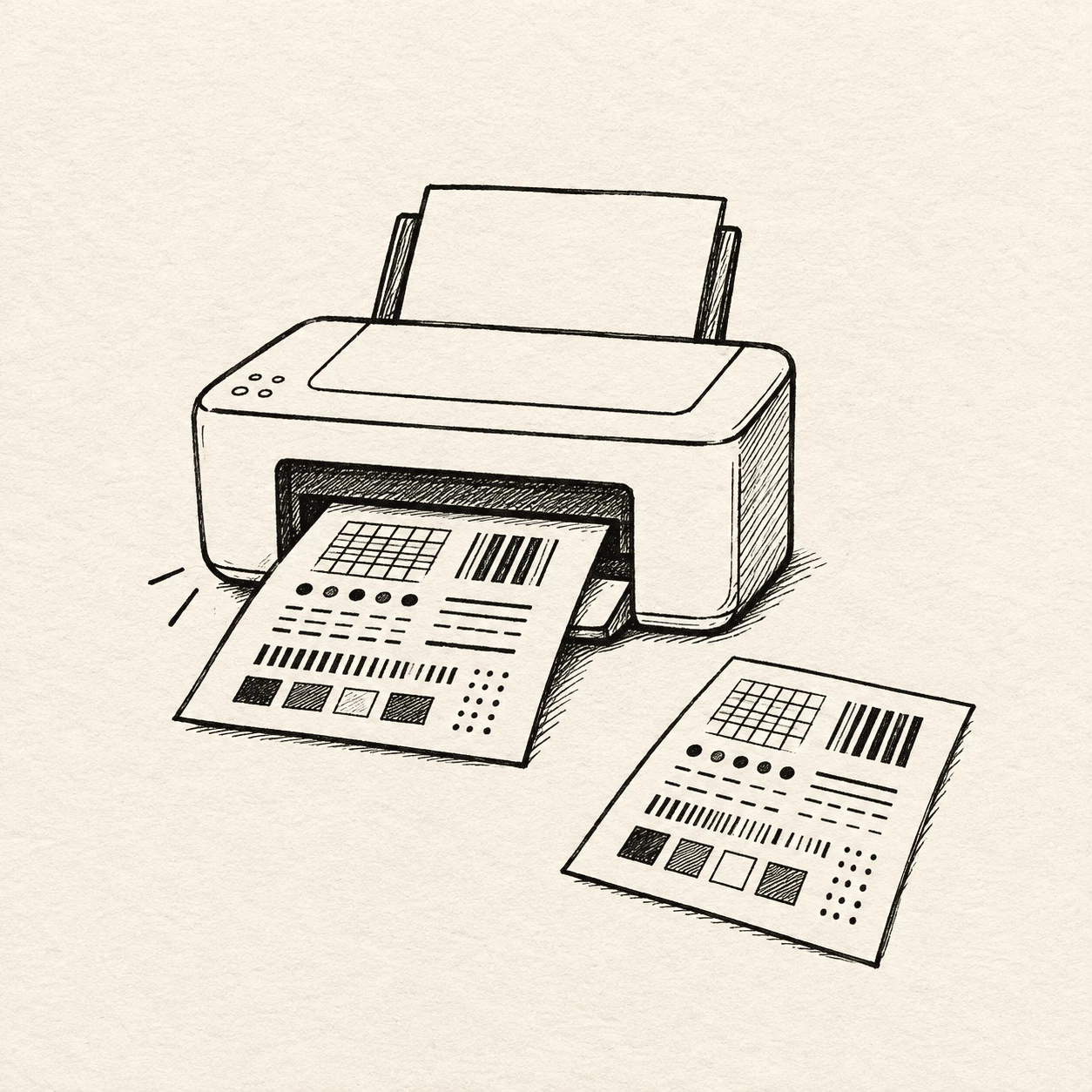
What a printer test page is
A printer test page is a ready-made sheet made to stress your printer in one job. It sends ink or toner through each channel at set levels so you can spot a blocked nozzle, weak color, or crooked text right away. Unlike a normal letter or photo, it uses test grids, color patches, fades, and small and large type on purpose. The printer test page layouts on this site let you check your machine before an important print run.
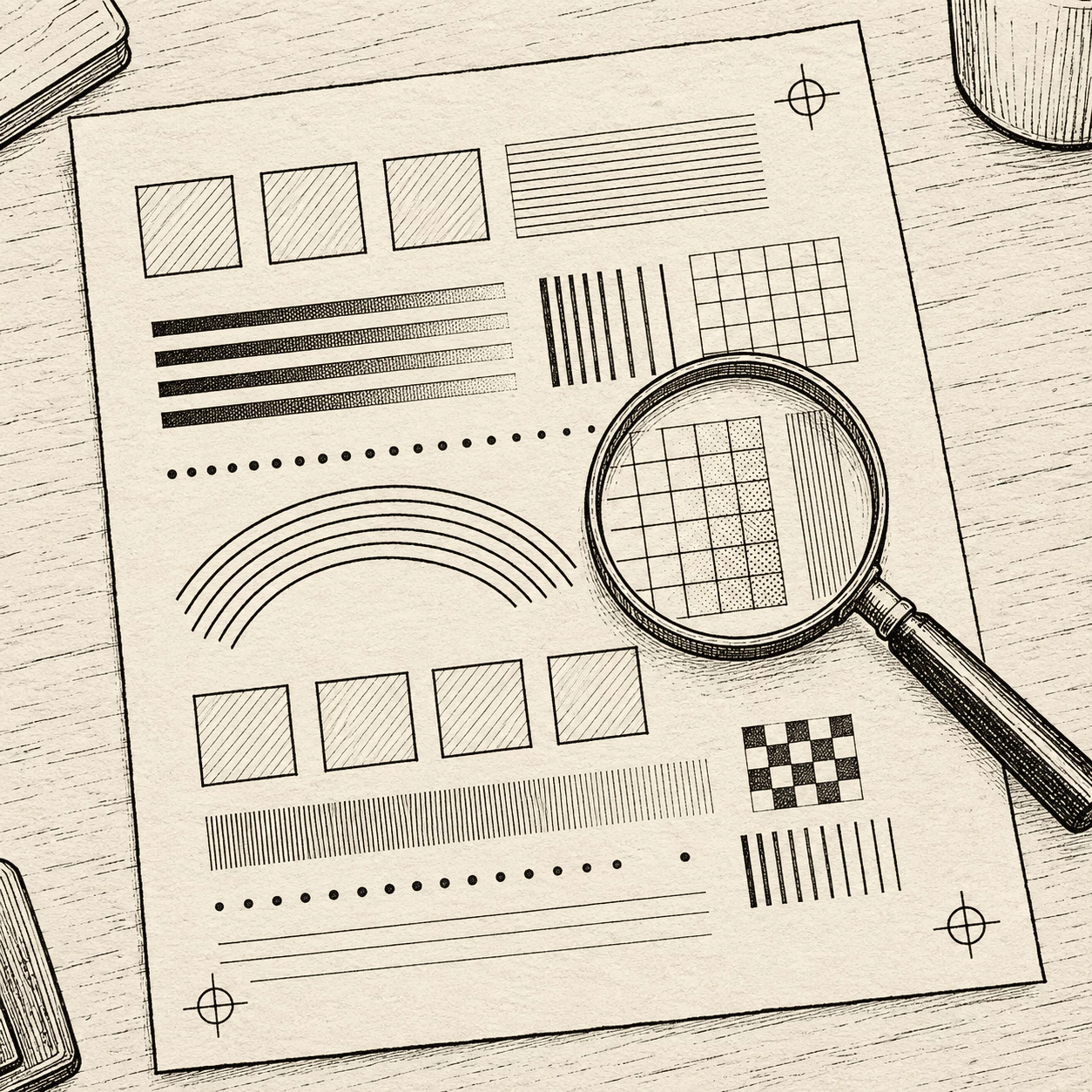
- Patterns and color blocksA solid printer test page mixes lines, grids, rainbow bars, and solid CMYK blocks. When one strip looks thin or missing, you know which cartridge or nozzle needs attention instead of guessing from a regular document.
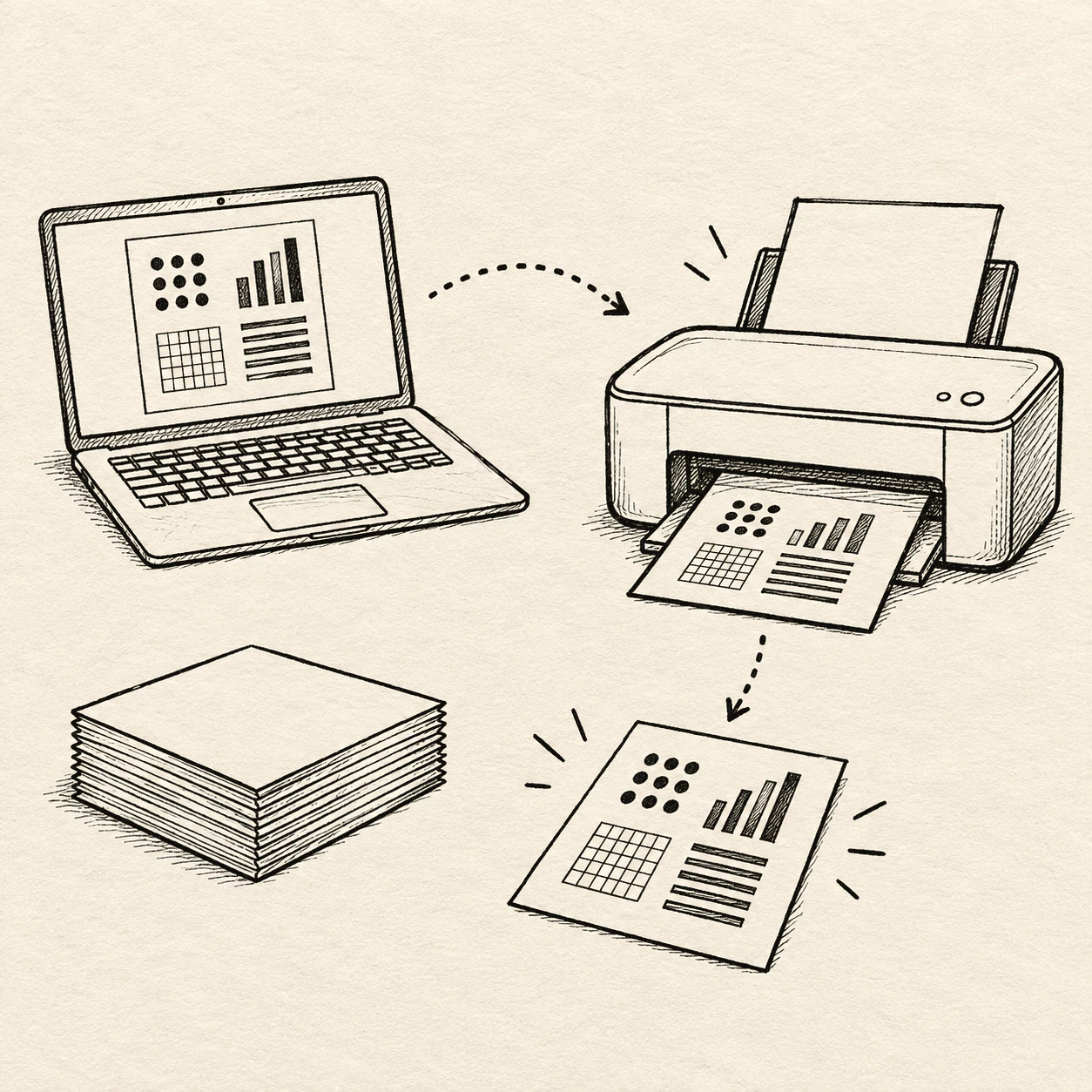
- Open and printChoose the printer test page layout that fits your goal — full color, black and white, or CMYK — open it in your browser, then use your normal print dialog. Pick your printer, use decent paper, and print at full size so the results mean something.
- Spot problems fastStreaks on a printer test page often mean dried ink in an idle machine. Faded patches can mean low ink or a clog, not always an empty tank. Wavy or double text points to alignment. A quick test read saves good paper on the job that matters.
Who a printer test page is for
You do not need to be a repair tech. Anyone with an inkjet, laser, or office printer can run a printer test page when output looks wrong. Home users, people working from a desk, and small teams all use the same idea: print once, read the page, and fix small issues before they ruin a real job.
What you get on this Printer Test Page
This printer test page hub gathers several printable layouts in one place — color, black and white, and CMYK — so you can check coverage, hue, and alignment without hunting around. Open a sheet, print it, and read the result on paper.
Full color test sheets
On a color printer test page, rainbow bars, smooth fades, and sample text show whether each ink or toner color looks strong and blends cleanly. Handy for inkjets and color laser machines when photos or graphics look dull.
Black and white layouts
A black-and-white printer test page uses simple grids and text at different sizes to help you judge sharp edges and even black output. Use one when lines look fuzzy or when you only print in monochrome on a laser or desk printer.
CMYK color blocks
A CMYK printer test page separates cyan, magenta, yellow, and black patches so you can see a weak channel or wrong mix. Good when you need tighter color control for flyers, labels, or office documents.
Open and print fast
Pick the printer test page you need, open it in the browser, then use Ctrl+P on Windows or Cmd+P on Mac. Choose your printer and print — the same flow works on laptop or desktop.
Many printer types
Each printer test page here works with common home inkjets, office lasers, color laser units, and other setups that use standard paper. For thermal or label rolls, match the test layout to the paper you actually run.
Greyscale and alignment cues
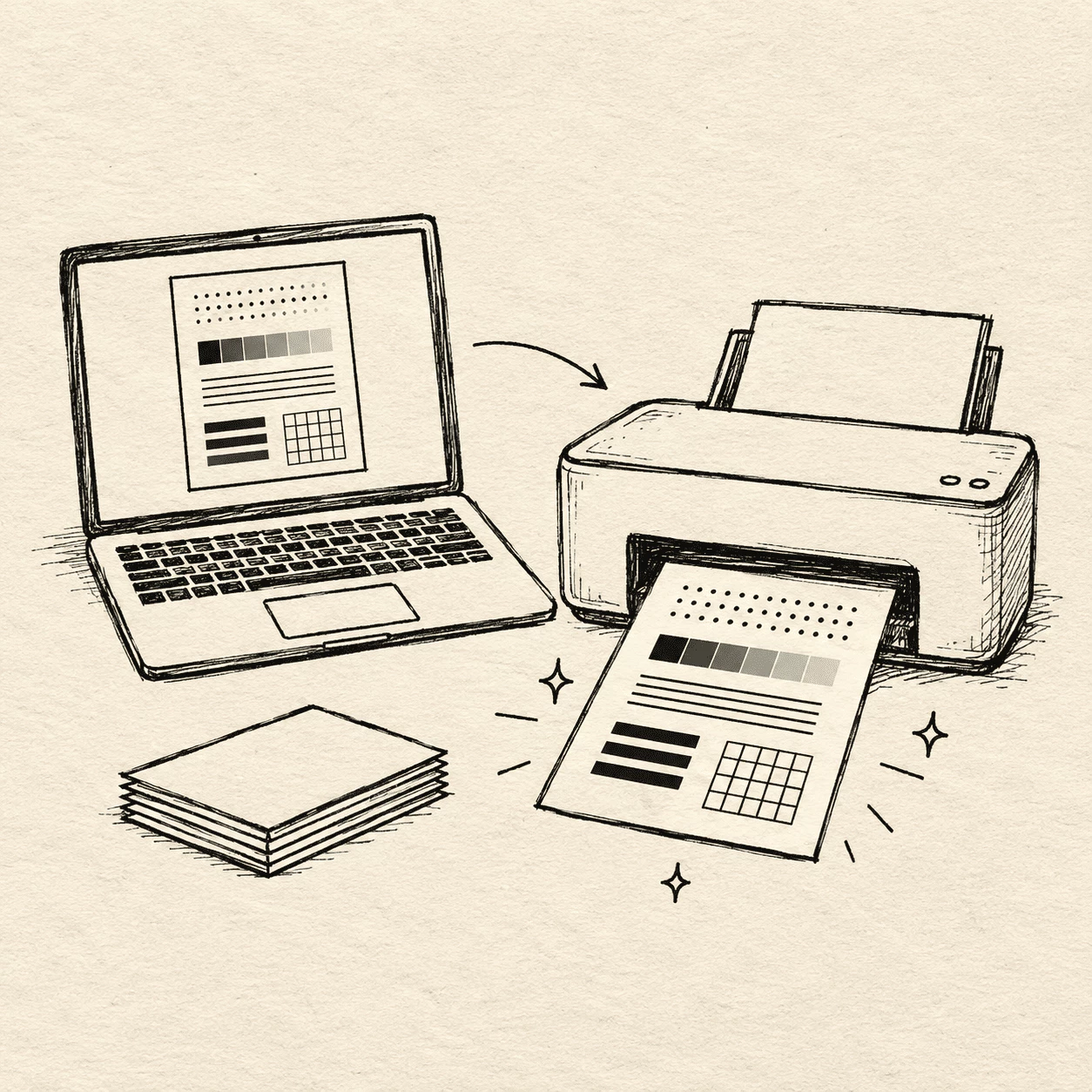
A greyscale printer test page uses grey steps and fine lines to highlight banding or crooked text. Print at full page size on decent paper so the sheet reflects real jobs, not a shrunk preview on scrap.
How to use a printer test page
Pick a printer test page that matches your issue, print it once, then read what the paper shows. The whole flow takes about half a minute when your printer is already connected.
Choose your sheet
Scroll to the test area and open the printer test page you need — full color for hue checks, black and white for sharp text, or CMYK when you want each ink channel on its own. The file opens in your browser so you can print right away.
Send it to the printer
Press Ctrl+P on Windows or Cmd+P on Mac, pick your printer from the list, and send the printer test page to the tray. Use plain paper at full page size first so lines and color blocks are easy to judge.
Read and fix
Look for missing stripes, streaks, or washed-out patches on your printer test page. Run a head cleaning or alignment from your printer menu if the sheet points to a clog or crooked text. Print again after a fix to confirm it worked.
Test your printer on one page.
Whether you just changed a cartridge or prints suddenly look weak, a printer test page on this site puts color bars, grids, and sample text in one print job so you can spot the issue without guessing from a normal document.
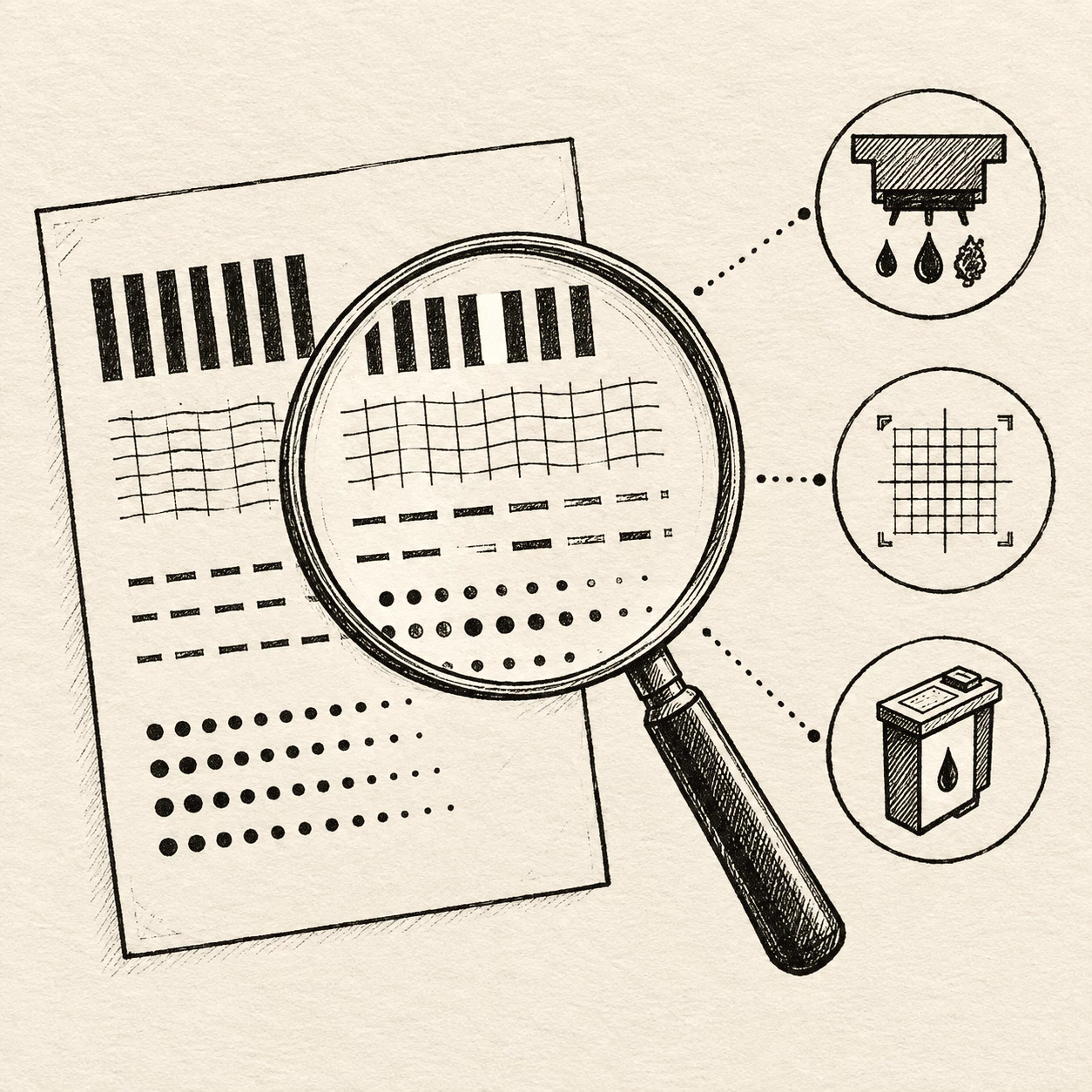
Start with a basic sheet.
Open the black-and-white or full-color layout first and send one copy to your printer. Look at the bars and small type — missing lines or pale patches tell you which channel or nozzle needs care before you run photo paper or thick stock.
- Print at full page size on plain paper so grids and colors read clearly
- Run the same sheet again after cleaning or alignment to see if quality improved
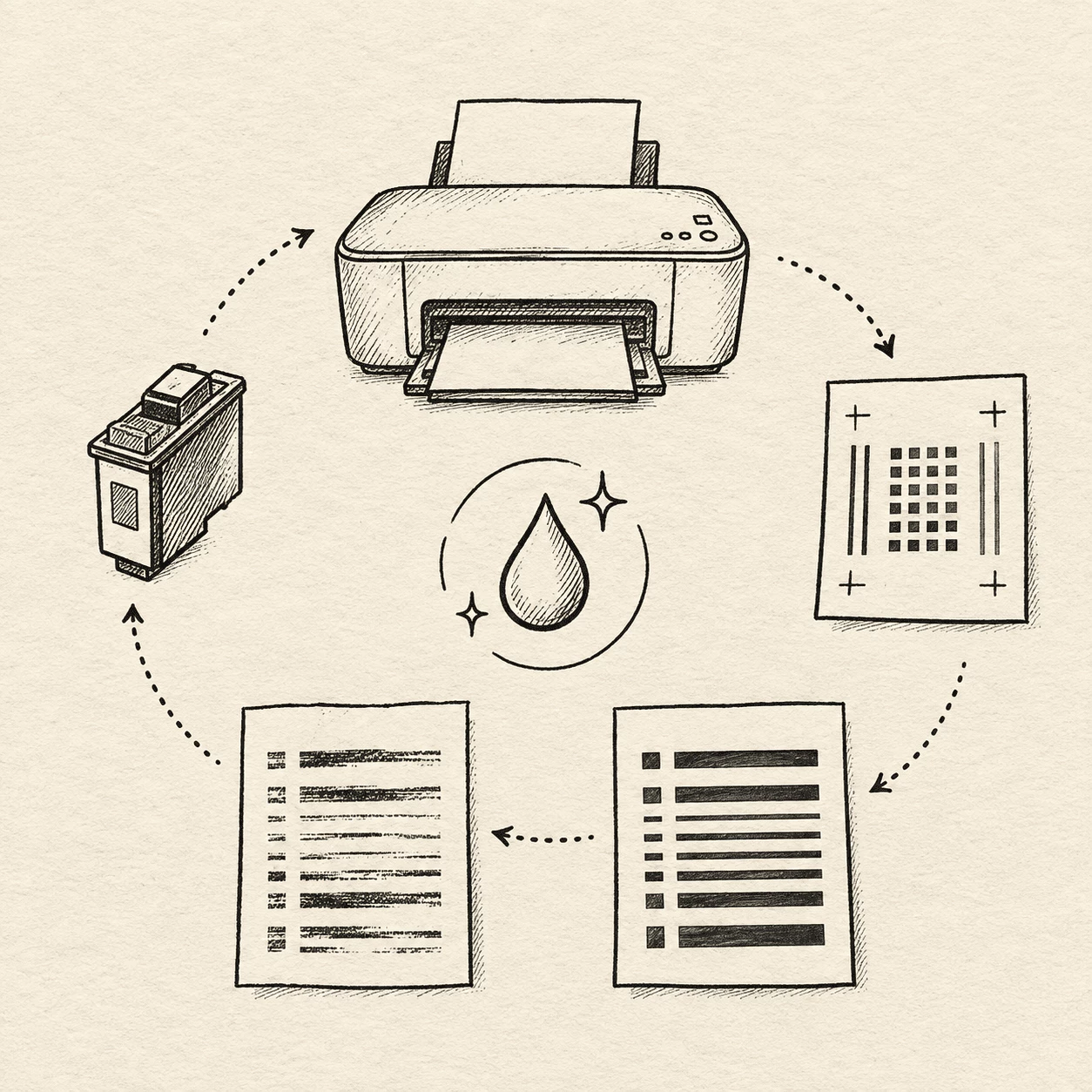
Match the print to the problem.
Hold the test sheet under good light and compare each color block and line to a past good print if you have one. A blank stripe in cyan or magenta often means a clogged head, while blurry grids usually mean alignment slipped — especially after the machine was moved.
- Mark which bar or text band looks wrong so you know what to clean or replace
- Use your printer’s built-in test print on Windows or Mac when you need to check the link to the computer, not just ink quality
One print. Three ways to check.
Good printer care starts with the right printer test page layout. Color bars catch weak hues, black-and-white grids catch fuzzy text, and CMYK blocks show which ink channel is off — all from a single sheet you can run in minutes.
Full color
Color
A color printer test page uses rainbow strips and smooth fades to show whether each toner or ink color looks strong and blends cleanly on inkjets and color laser machines.
Black and white
B&W
A black-and-white printer test page uses grids and text at different sizes to reveal sharp edges and even black output — useful when lines look soft on a mono or laser printer.
CMYK blocks
CMYK
A CMYK printer test page separates cyan, magenta, yellow, and black patches so it is obvious when one channel is thin or missing, which matters for flyers, labels, and office color work.
Questions before you print
Short answers about printer test page basics and how to use the sheets on this site. Read these first, then scroll up to print one.
What is a printer test page?
Each printer test page is a ready-made sheet built to test your printer in one job. It runs ink or toner through each channel using set patterns, color blocks, fades, and text sizes so you can spot clogs, weak color, or crooked alignment before a real document fails.
What is a printer test page used for?
A printer test page helps you judge print quality, ink flow, and alignment on inkjets, lasers, and color office machines. You get a quick health check without special tools — just paper and your eyes on the finished sheet.
How do I print a test sheet from this page?
Pick full color, black and white, or CMYK near the top, open the printer test page in your browser, then press Ctrl+P on Windows or Cmd+P on Mac. Select your printer and start the job. Use plain paper at full size for the clearest read.
How do I print a test page on my computer?
On Windows 10 or 11, open Control Panel, go to Devices and Printers, right-click your printer, choose Printer Properties, and click Print Test Page. On Mac, open System Settings, Printers & Scanners, pick your printer, then Options & Supplies, Utility, and Print Test Page.
What does a color test page show?
On a color printer test page, rainbow bars and gradients reveal faded hues, banding, or uneven blending. A thin or missing stripe often points to a low cartridge or clogged nozzle rather than a software glitch.
Can I use these sheets with any printer?
A standard printer test page works with most home inkjets, office lasers, and color laser models on standard paper. For thermal rolls or label stock, use a layout meant for that paper so you do not waste expensive media.
When should I print a test page?
Print a printer test page after new ink or toner, when colors look washed out, if the printer sat idle for weeks, before card stock or photo paper, or after you moved the machine. Each case catches a different kind of slip before it ruins a real job.
Why is my test page printing blank?
When a printer test page prints blank, the cartridge may be empty, the protective tape may still be on, or the print head may be badly clogged. Check connections, restart the printer and computer, confirm the right tray and paper size, then try the built-in test print from your system settings.
How often should I print a test page?
If you print rarely, run a printer test page once a week to keep nozzles wet. After every cartridge change, print one sheet to confirm density. Before an important batch, a single test on plain paper is enough.
Can I use a test page on thermal printers?
Yes, but run a printer test page on the thermal or label roll you actually use. Heat-based output will not show ink-style CMYK blocks the same way — pick a simple pattern test so you do not burn through costly stock.